Events and Notifications
Traccar supports a number of different event types. Most events are generated on the server side based on the data reported by devices. There is a special alarm event type, which represents events directly reported by devices.
Each user can configure notifications for certain types of events. Notifications can be sent using one or multiple channels, like email, push notifications, SMS and others. A notification can be enabled for all devices or linked to individual devices or groups of devices. Events are generated and can be accessed using the events report even if no notifications are configured for a certain device and type of event. Notifications can be configured in the settings menu:
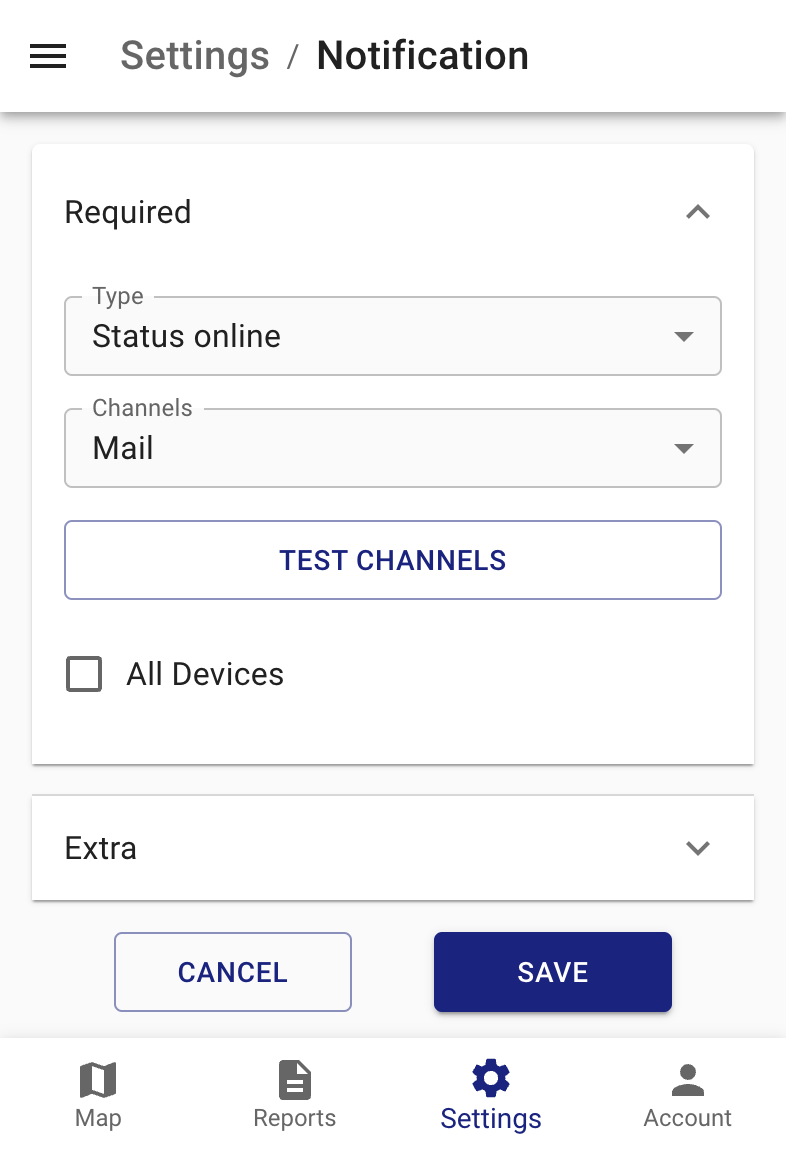
By default Traccar has web and email notification channels enabled. To add or remove channels you need to edit the configuration file. See the notifications configuration page for more details.
It is also possible to limit notification time using a calendar.
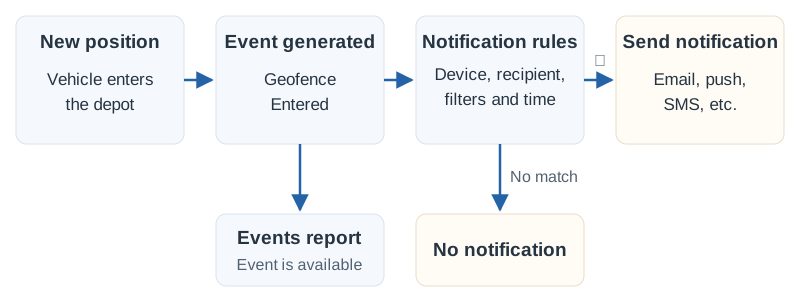
Example: notify a dispatcher when a vehicle enters a depot
- Create a depot geofence and link it to the vehicle or its group through Connections. This configures event generation.
- Give the dispatcher access to the vehicle and the geofence through Settings > Users > Connections.
- Create a notification with type Geofence Entered and choose a delivery channel. To monitor selected vehicles, leave All Devices disabled and link the notification to those devices or their groups. With All Devices enabled, the notification applies to devices the recipient can access.
- If you created the notification for another user, link it to that user as well. Recipients need access to both the notification and the device.
- Optionally select the depot in the notification's geofence filter and a calendar to limit delivery times. A calendar on the geofence instead limits event generation.
- Configure and test the delivery channel using Notifications Configuration. For web notifications, keep the recipient's app open and connected.
- Check a new crossing from outside to inside the depot. Use the Events report to confirm whether an event was recorded.
Configuring a notification does not replay historical events. A successful channel test confirms delivery settings, but does not test the device association, event conditions or calendar filters.
Troubleshooting notifications
- No event in the report: check that new positions arrive, that the device reports any required attributes, and that the geofence or maintenance schedule is linked to the device/group. Check any calendar on the geofence.
- Event exists but no notification arrives: check the notification type, alarm subtype or geofence filter, device/group connections, recipient access, notification calendar and selected channels.
- Channel test fails: check email, phone, push registration or provider credentials as applicable, and inspect the server logs. See Notifications Configuration.
Event Types
| Type | Description |
|---|---|
| Command Result | A result of a command execution on the device. Support for results varies by protocol. Result details are stored in the result attribute. |
| Status Online | Device is connected to the server. This event type is not associated with a position. |
| Status Unknown | Device is connected, but has not reported any data for a period of time. It can also indicate that the device has not closed the connection gracefully. |
| Status Offline | Device has disconnected from the server. |
| Device Inactive | Device has not reported any location data for a very long period of time. This event needs to be explicitly enabled using deviceInactivityStart and deviceInactivityPeriod attributes. |
| Device Moving | Device is moving. For more details on the logic see the trips and stops documentation. |
| Device Stopped | Device has stopped. For more details on the logic see the trips and stops documentation. |
| Speed Limit Exceeded | This event is generated when a device exceeds the configured speed limit. The threshold value can be set using the device, group or server speedLimit attribute. |
| Fuel Drop | Sharp fuel level drop over fuelDropThreshold. Device has to support fuel level for this event to work. |
| Fuel Increase | Sharp fuel level increase over fuelIncreaseThreshold. Device has to support fuel level for this event to work. |
| Geofence Entered | Device has entered a geofence area. The geofence has to be linked to a device or a group of devices. |
| Geofence Exited | Device has exited a geofence area. The geofence has to be linked to a device or a group of devices. |
| Proximity Enter | A linked device has come within the configured distance of this device. Set the distance threshold in meters using the proximityEnterDistance device attribute (0 disables the event). |
| Proximity Exit | A linked device has moved beyond the configured distance from this device. Set the distance threshold in meters using the proximityExitDistance device attribute (0 disables the event). |
| Unaccompanied Motion | Device has started moving while no linked device is within the configured distance. Set the distance threshold in meters using the unaccompaniedDistance device attribute (0 disables the event). |
| Alarm | This event type represents any device-reported events/alarms. There are a large number of subtypes. Some alarms might duplicate events, but those are generated directly on the device vs. events that are generated on the server side. See the section below for some alarm examples. |
| Ignition On | Ignition value has changed from off to on. This event requires the device to continuously report the ignition value. |
| Ignition Off | Ignition value has changed from on to off. This event requires the device to continuously report the ignition value. |
| Maintenance Required | Event for periodic maintenance. It requires a maintenance schedule in the settings. The maintenance schedule can be linked to a device or a group of devices. |
| Driver Changed | This event is generated when the driver id changes. Normally driver identification must be reported by the device. A configured linked-driver fallback is also available; see Drivers. |
| Media | Event indicating that the device has uploaded some media data. It can be an image, a video or an audio file. Support varies by protocol. |
Alarm Types
List of the most commonly used alarms. The list is not exhaustive.
| Type | Description |
|---|---|
| General | A generic case when the device does not specify the type of alarm. |
| SOS | Panic alarm. This type of alarm is usually generated by a button press on the device, but depends on the specific device model. |
| Vibration | Usually this alarm is generated when a stationary device starts moving. Often it is based on the accelerometer sensor in the device. |
| Overspeed | Speeding alarm. It is similar to the speed limit exceeded event, but generated on the device, so it can be more accurate if your device supports it. |
| Low Power | External power supply voltage is low. |
| Low Battery | Internal battery level is low. |
| Geofence Enter | Similar to the server event, but generated on the device, so it can be more accurate if your device supports it. |
| Geofence Exit | Similar to the server event, but generated on the device, so it can be more accurate if your device supports it. |
| Tampering | The device is being tampered with. It usually indicates that someone has opened the device casing, but sensor type and trigger depend on the specific device model. |